Note
Access to this page requires authorization. You can try signing in or changing directories.
Access to this page requires authorization. You can try changing directories.
Agent collections provide a way to organize your agent identities. Collections allow administrators to group agents based on various criteria such as function, security requirements, or business context, and then apply consistent policies across those groups. This article explains how to navigate, create, and manage agent collections, including adding agents to both predefined and custom collections.
Navigate to agent collections
To get to your agent ID blueprint page, follow these steps:
Sign in to the Microsoft Entra admin center as an Agent Registry Administrator.
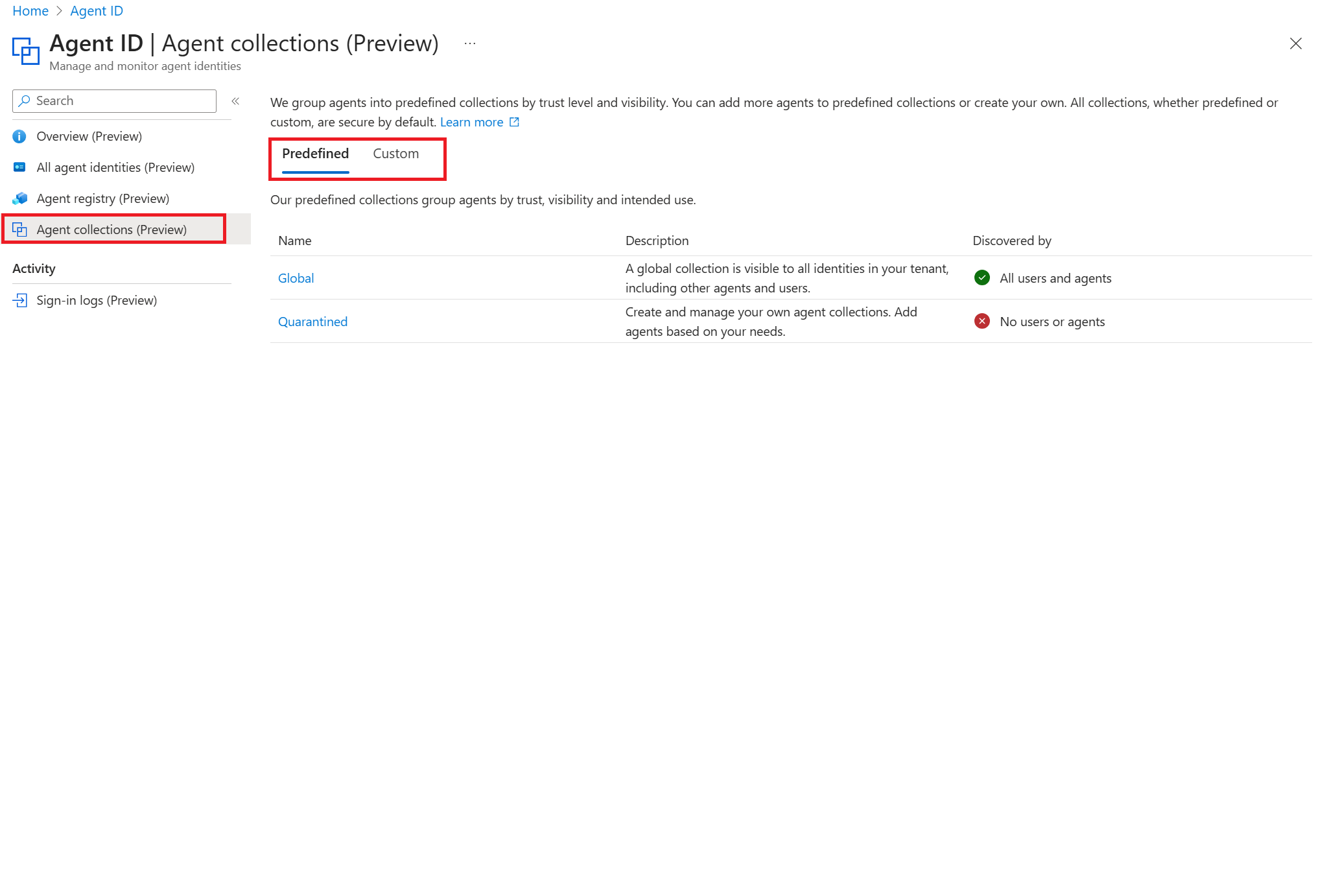
Browse to Entra ID > Agent ID > Agent Collections (Preview).
In the Agent collections view, you see a tabbed section containing two options:
- Select Predefined tab to view agents added to the Global collection.
- Select Custom tab to view agents added to custom collections. This tab displays any custom collections that you created in your tenant. Selecting a custom collection shows the agents that are part of that collection.
Create a custom collection
To create a custom collection, follow these steps:
In the Agent collections view, select the Custom tab.
Select + Create collection.
Provide a descriptive and meaningful Name and Description of the collection.

Add an agent to predefined collections
Use the following steps to add an agent to a predefined collection.
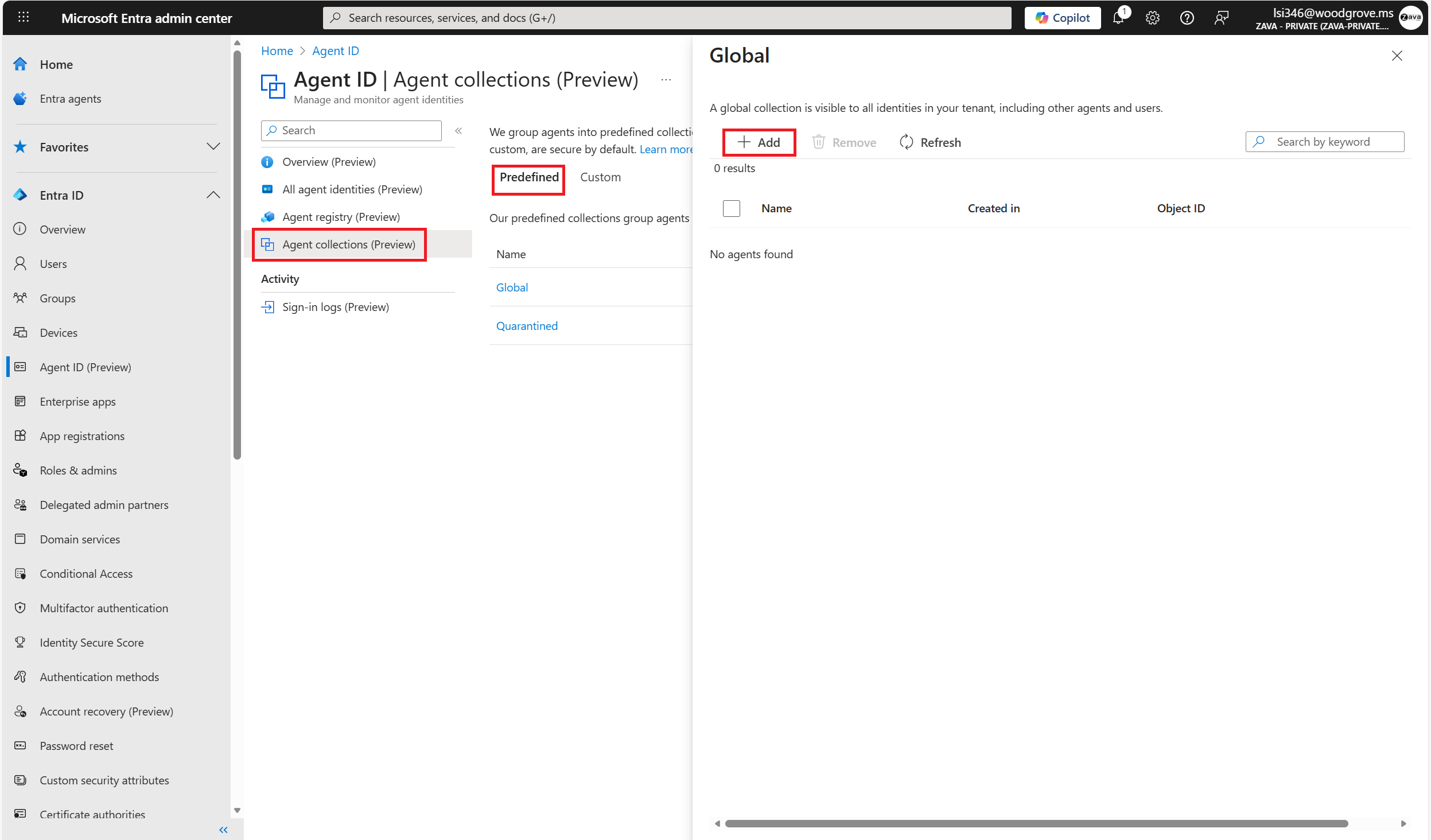
Select the Predefined tab to view the predefined collections.
Select the predefined collection you want to add the agent to. It opens a view listing all the agents in that collection and their publisher (builder platform).
To add an agent to the collection, select + Add, then choose the agents you want to add.
Add an agent to custom collections
Use the following steps to add an agent to a custom collection.
- Select the Custom tab to view the custom collections.
- Select the custom collection you want to add the agent to. A list of all agents and their publisher (builder platform) appears.
- To add an agent to the collection, select + Add, then choose the agents you want to add.
Configure Zero Trust Policies for agents
The Microsoft Entra Agent Registry follows Zero Trust principles. For collections, Zero Trust principles are applied by configuring access and discovery policies.
Access policies determine whether an agent can access Microsoft Entra-protected resources, such as other agents, authentication endpoints, or APIs protected by conditional access.
- Ensure the agent can obtain a Microsoft Entra access token and complies with all access policy requirements.
- Apply conditional access policies for agents to enforce access controls based on the agent's context.
- Use identity protection for agents to monitor and respond to risky agent behaviors.
Discovery policies define which agents can be discovered through the registry. You can use system-defined policies provided by Microsoft or create admin-defined policies to suit your organization's needs.