Note
Access to this page requires authorization. You can try signing in or changing directories.
Access to this page requires authorization. You can try changing directories.
[This article is prerelease documentation and is subject to change.]
This article explains the main scenarios for users of the self-scheduling portal.
Important
- This is a preview feature.
- Preview features aren't meant for production use and may have restricted functionality. These features are available before an official release so that customers can get early access and provide feedback.
Access and view the home page
The portal requires users to create a portal profile before they can sign in and book services.
Open the link you received in the invitation.

Select the Redeem invitation tab, and enter the code you received in the email.
Create your profile for the portal.
Select Manage external authentication to sign in with other identity providers, if needed.
Save the profile and sign in to the self-service scheduling portal.
Schedule services on the portal. You receive an email confirming your booking.
Book an appointment
Sign in to the portal. On the home page, select Book a New Appointment.
Choose the product and service type.
Choose a date and time. When you select a day, available time slots appear automatically.
Provide optional comments about the appointment or service.

Select Book to create the appointment.
Modify an appointment
Change an appointment in the portal by selecting a new date and time, or canceling it.
- Sign in to the portal and select Modify on an existing appointment.
- Select a new date and time and save your changes.
- To cancel the service visit, select Cancel appointment and provide a note about the reason.
View different states of the booking on the portal
Traveling
Appointments in the Traveling state indicate the technician is traveling to a service appointment. Appointments set to Traveling appear in the Active appointment section of the portal home page.
If technician tracking is turned on, the portal shows the technician's location on a map. Select View Live Map to see the location.
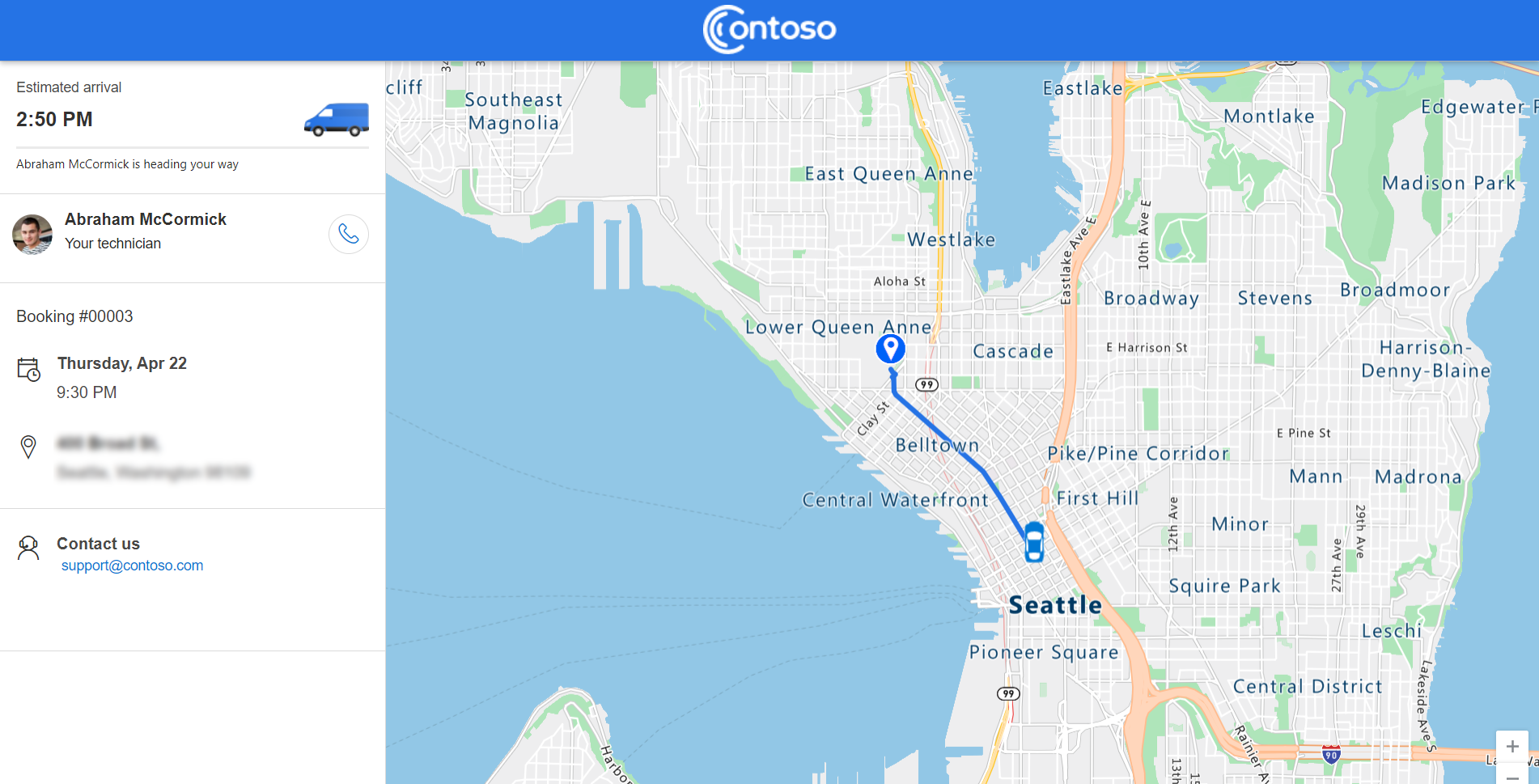
If multiple appointments are set to Traveling, only one appears in the Active appointment section. The other active appointments are listed in the Upcoming appointments section. Select View Live Map to view their locations.

Note
Technicians must share their location from the Field Service mobile app to enable location tracking and estimated travel time. A slight delay exists between the technician's actual location and the location shown on the map, which might increase with limited network coverage of the technician's mobile device.
In Progress
Appointments in the In Progress state appear in the Upcoming appointments section of the portal home page. These appointments can't be changed or canceled.
Scheduled
Scheduled appointments appear in the Upcoming appointments section. Change or cancel scheduled appointments as needed.

Canceled or completed
Canceled and completed appointments move to the Past appointments tab. Optional surveys for sending feedback appear on completed appointments.

Manually send an invite to a contact
Before customers can use the Field Service portal, make sure you configure the portal settings and enable notifications.
- Sign in to Field Service.
- Open a contact record, and select Create Invitation.
- On the contact record, select Related > Web roles.
- Select Add Existing Web Role, and choose the Web API User role.
- Select Add, and save the changes.
Advanced user notification scenarios
Receive a new self-scheduling invite for contacts deleted and added again
A contact with a matching email only receives the portal invite once, even if the contact is deleted and readded to the system. To resend an invite:
- Sign in to the Power Platform admin center and select your organization's environment.
- In Resources, select Power Apps and then select Power Pages Management.
- In Security, select Contacts in the left pane, and open the newly created contact record.
- On the command bar, select Create Invitation. Fill in any additional information and select Save.
- Select Advanced, and copy the Invitation code.
- In the General tab, go to Assign To Web Roles, and select Add existing web role.
- Select the Web API Users web role.
- Send the invite code and the portal link to the desired contact.
From the portal side:
- Open your self-scheduling portal and go to the sign-in screen.
- Select Redeem invitation.
- Paste the invite code, and create a portal account.
Receive a password reset email
Ensure the correct business process flow is enabled for this functionality.
- Sign in to Power Apps.
- Select Solutions and your organization's solution.
- Under Objects, select Processes.
- Search for and open Send Password Reset to Contact.
- In the Send Password Reset to Contact window, scroll to Send password reset email, and select View Properties.
- Edit the From field for a user, typically the same account you use to send notifications for the scheduling experience, and then select Save and Close.

- Sign in to the Power Platform admin center and select your organization's environment.
- Select Settings > Email > Mailboxes.
- Select the user you set in step 6, select Approve Email, and then select Test & Enable Mailbox.