Hi @Sami, Abdul,
Welcome to the Microsoft Q&A forum.
Thank you for reaching out regarding the following error message:
“Sorry, something went wrong opening Information Rights Management protected content - The parameter is incorrect.”
We apologize for any inconvenience this may have caused.
This message generally occurs when your application cannot properly validate identity and permissions with the Rights Management service, often due to incorrect account permissions, a corrupted RMS/IRM cache, or outdated Office or AIP/MIP components required for handling IRM-protected content.
1/ Verify your account and permissions
Ensure you are signed in with the account that has permission to access the protected content. If you are using a guest account, confirm that you have accepted the invitation to the correct tenant.
2/ Clear IRM/RMS cache
- Close all Office applications.
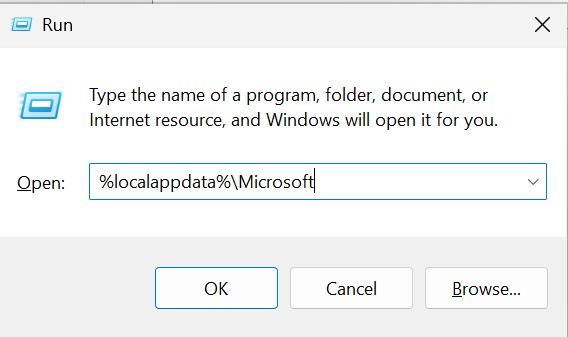
- Press Windows + R, type %localappdata%\Microsoft, and press Enter.
-
- Locate the folder:
- For Office 2013 and later: MSIPC → rename to MSIPC_OLD.
- For Office 2010: DRM → rename to DRM_OLD.
- Restart your computer, then open the file again.
(This forces Office to create a fresh cache and re-authenticate your credentials.)
- Clearing Microsoft Office RMS cache | All products – Intralinks
Note: Microsoft is providing the above information as a convenience to you. Some of the websites are not under Microsoft's control. Microsoft cannot make any representations regarding the quality, safety, or suitability of any software or information found there. Please make sure that you completely understand the risk before retrieving any suggestions from the above link
3/ Update AIP/MIP components
If you use Azure Information Protection (AIP) client or MIP SDK, download the latest version from Microsoft’s official site.
4/ Check network and security settings
- Ensure your device can connect to the Rights Management service (no proxy/firewall blocking).
- Temporarily disable VPN or proxy and retry.
- If you use antivirus software, add Office and AIP components to the allowlist.
5/ Test with another device or account
If possible, try opening the file on another device or with another account that has permissions. This helps confirm if the issue is device-specific.
6/ Contact Microsoft Support
If the issue persists even after these steps, it may stem from a deeper system-level cause. In this case, I recommend contacting your organization's IT administrator, who can submit a support request to Microsoft through the Microsoft 365 Admin Center. They’ll be able to access system-level information to investigate the issue thoroughly and provide assistance. At the very least, they can offer the most effective workaround to ensure your experience remains smooth and secure.
We kindly ask for your understanding that, as moderators, we do not have access to the administrative tools or permissions required to investigate or modify these configurations. We also do not have the capability to initiate remote sessions for direct assistance. Our role is to guide users to the appropriate resources and support channels.
I hope this information is helpful. Please follow these steps and let me know if it works for you. If not, feel free to share them in the comments on this post so I can continue to assist you.
I look forward to hearing your thoughts on this.
If the answer is helpful, please click "Accept Answer" and kindly upvote it. If you have any extra questions about this answer, please click "Comment".
Note: Follow the steps in our documentation to enable email notifications if you want to receive email notifications related to this topic.
' cx='32' cy='32' r='32' /%3E%3Ctext x='50%25' y='55%25' dominant-baseline='middle' text-anchor='middle' fill='%23FFF' %3ESA%3C/text%3E%3C/svg%3E)


' cx='32' cy='32' r='32' /%3E%3Ctext x='50%25' y='55%25' dominant-baseline='middle' text-anchor='middle' fill='%23FFF' %3ECD%3C/text%3E%3C/svg%3E)
' cx='32' cy='32' r='32' /%3E%3Ctext x='50%25' y='55%25' dominant-baseline='middle' text-anchor='middle' fill='%23FFF' %3EI%3C/text%3E%3C/svg%3E)